
Getting started in your browser
This guide takes you from nothing installed to connected, in about two minutes, on any desktop OS. It covers install, sign-in, connecting, and where to get help. For every control and setting, read the browser tour.
URnetwork uses member-run exit devices. Providers do not receive your source IP on relayed paths. One scope note: the extension has no sealed session — your client device runs inside the operator, which translates the browser's protocol into the network's — so what stands between the operator and your content is the storage design described in the threat model, not a seal. Read How URnetwork works for the full model.
What you need
A desktop browser: Chrome and most Chromium browsers, Edge, or Firefox. The extension proxies this browser's traffic and nothing else. It works by configuring the browser's proxy settings, so everything the browser does exits through URnetwork providers, and nothing else on your computer is touched. It is not a device-wide VPN. For the whole machine, use the URnetwork app for Windows, macOS, or Linux.
The extension is also one half of one product. Sign in once at ur.io and the web app installs, sets up, connects, and re-locates the extension for you; the extension is what enforces it inside the browser. The popup drives all of it too, if you would rather not keep a tab open.
Install
Install from your browser's store:
- Chrome (and most Chromium browsers): chromewebstore.google.com/detail/urnetwork/kpnklgbgjkihebbieiggfeokkddjbkfb
- Edge: microsoftedge.microsoft.com/addons/detail/urnetwork/jegjndonglfogpmldpmokincfecdombi
- Firefox: addons.mozilla.org/en-US/firefox/addon/urnetwork/
Pin the icon to your toolbar; you will be opening the popup a lot. Or skip the list: signed in at ur.io, the app offers the right store link for your browser.
A note for Firefox tinkerers: a ZIP you load yourself via about:debugging is temporary and disappears when Firefox restarts. Use the listing above.
Third-party security assessments, and their limits, are covered in the threat model.
Sign in
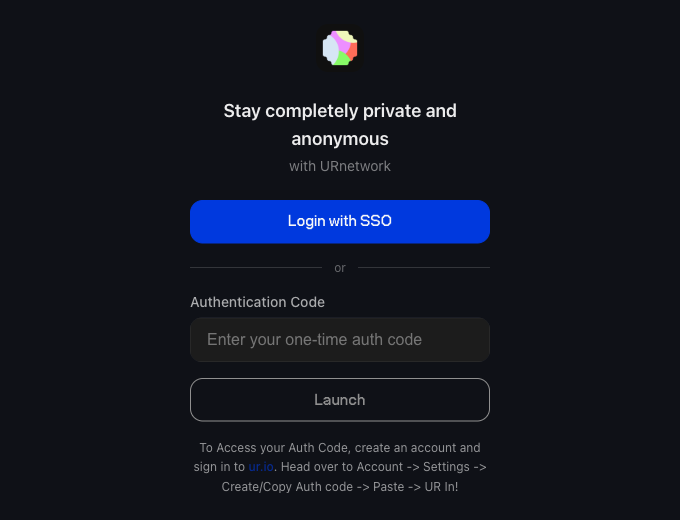
Easiest: sign in at ur.io and press Set up extension to use your network. The web app hands this browser your session directly, with no code to copy, and then reads "Extension connected and ready to use". From the popup instead, pick either path:
- Login with SSO. Single sign-on: the same account you would use in the apps. It opens a web sign-in flow in a new tab; sign in or create your network there, and the extension picks up the session when the tab returns you. An email or phone one-time code is enough. To sign up with no email at all, sign the login message with a Solana or Bittensor wallet.
- Paste an auth code. A short code that signs this browser into an account you already have; it cannot create one. Generate it in any URnetwork app or from your ur.io account panel, and paste it promptly. A ur.io code is single-use and expires about a minute after you make it.
New here? Take the SSO path. Every network starts on the free tier, a daily data allowance that refreshes each day. Pro ($5/month or $40/year) replaces it with a large monthly allowance. Current numbers: ur.io/products.
The proxy permission
There is no operating-system dialog. Adding the extension from the store is the consent step: that is what lets it manage this browser's proxy settings, and connecting later asks for nothing more.
One browser-level consent remains on Firefox. Firefox keeps extensions out of Private Windows unless you allow "Run in Private Windows" in the add-on's settings; until you do, private-window traffic bypasses the proxy. Chromium browsers apply the proxy profile-wide, incognito included.
For what URnetwork records about your connections, read the threat model.
Connect
- Open the popup from the toolbar icon and hit connect. Best available is the default: the network keeps picking fast, reliable providers for you.
- The popup names your public address and says whether you are on URnetwork.
Choose a location
To choose where your traffic exits:
- Open the location picker and type into Search providers. Left empty it lists countries; a search returns Best matches plus cities filed under their region. That is how you pick a city, not just a country.
- Pick one, then connect.
Every entry carries a live provider count: how many member devices, real people's phones, computers, and routers sharing spare bandwidth, can be your exit right now. Counts rise and fall with the time of day. The overview explains the path your traffic takes and what each party can see. The tour explains the popup's settings and their trade-offs.
Confirm it works
The popup names your public address and says whether you are actually on URnetwork; ur.io/ip is the same check on the web. You should see a residential address, an IP belonging to a real home connection rather than a data center, in your chosen location. Different sites may see different addresses: traffic spreads across a few providers at once, though any given site consistently sees one.
If something fails
Pages refusing to load usually means the kill switch is doing its job. It ships on, subtitled Blocks traffic on failure: if the proxy connection drops, the extension blocks the browser's traffic rather than silently letting it fall back to your real connection. It health-checks every minute and retries on its own; pages load again when it reconnects or you disconnect. Turn the toggle off and a dropped connection fails open instead. It guards this browser only.
feedback.ur.io reaches the team. The tour has the per-browser troubleshooting, and the FAQ answers common questions.
What next
- Take the tour. The proxy machinery per browser, kill-switch semantics (on by default), the geolocation override, health checks, what it collects (nothing), and troubleshooting.
- Cover the whole machine. The extension guards this browser only: Windows, macOS, Linux, Android, and iOS.
- Read How URnetwork works. Who the providers are, what they can see, and how the economics keep the network supplied.