
Getting started on Android
This guide takes you from nothing installed to connected, in about five minutes. It covers install, sign-in, permissions, connecting, and where to get help. For every screen and setting, read the Android tour.
URnetwork uses member-run exit devices. Providers do not receive your source IP on relayed paths. Native apps can also encrypt traffic to the provider, once you switch on Post Quantum Encryption; it ships off. Read How URnetwork works for the full model.
What you need
URnetwork for Android runs on Android 8.0 (API 26) or newer. The package is com.bringyour.network in every channel below.
Install
Pick the channel you trust most:
- Google Play — play.google.com/store/apps/details?id=com.bringyour.network
- F-Droid — f-droid.org/packages/com.bringyour.network
- Direct APK — download from github.com/urnetwork/build/releases and sideload. Fine from this official releases page. You handle updates yourself.
- Solana dApp Store — on Solana Seeker devices.
F-Droid and GitHub builds do not include Google sign-in. Use Google Play if you need it. F-Droid rebuilds the app from public source.
Third-party security assessments, and their limits, are covered in the threat model.
Sign in
The app opens on the sign-in options. Pick the identity model you are comfortable with:
- Email or phone. You get a one-time code each time. There is no password. The account is as secure as that inbox or number.
- Google. Play builds only. The F-Droid and GitHub builds leave it out.
- Solana wallet. Sign a message with your wallet. That signature is your sign-in.
- Bittensor wallet. The same idea on the TAO side.
- Seedphrase. Sign back in with the phrase an Instant Account gave you. It is URnetwork's own recovery phrase. URnetwork never asks for a crypto wallet's seed phrase.
- Auth code. Already signed in on another device? Generate a one-time auth code there and enter it here. Codes expire after five minutes.
- Create Instant Account. No email, no phone, no password. Tap it, tick the terms box, and tap Create Account. You now have a real, permanent network. Instead of a login it hands you a seedphrase: a numbered list of words, shown once, that is the credential. Save it on that screen. There is a copy button, and the app makes you confirm before it moves on. Nobody can recover the account without it. It brings the account back on any device, even after a reinstall.
The Instant Account is the fastest path if you are just evaluating. Whichever you pick, you can attach a second sign-in method later in Settings, so losing one does not lock you out. Every network starts on the free tier, a daily data allowance that refreshes each day. Pro ($5/month or $40/year) replaces it with a large monthly allowance. Current numbers: ur.io/products.
The VPN permission
The first time you connect, Android asks for consent:
- On Android 13 and up, a notification prompt comes first. It is for the ongoing tunnel notification. Declining it still connects.
- Android then shows its system Connection request dialog, asking whether URnetwork may set up a VPN connection. Tap OK. This is Android's consent gate for any VPN app, with the same wording for every one. You see it exactly once.
For what URnetwork records about your connections, read the threat model.
Connect
- Open the app and tap the big connect button on the Connect tab.
- On your first connect, answer the permission prompts above.
- The tunnel comes up. A key icon appears in your status bar.
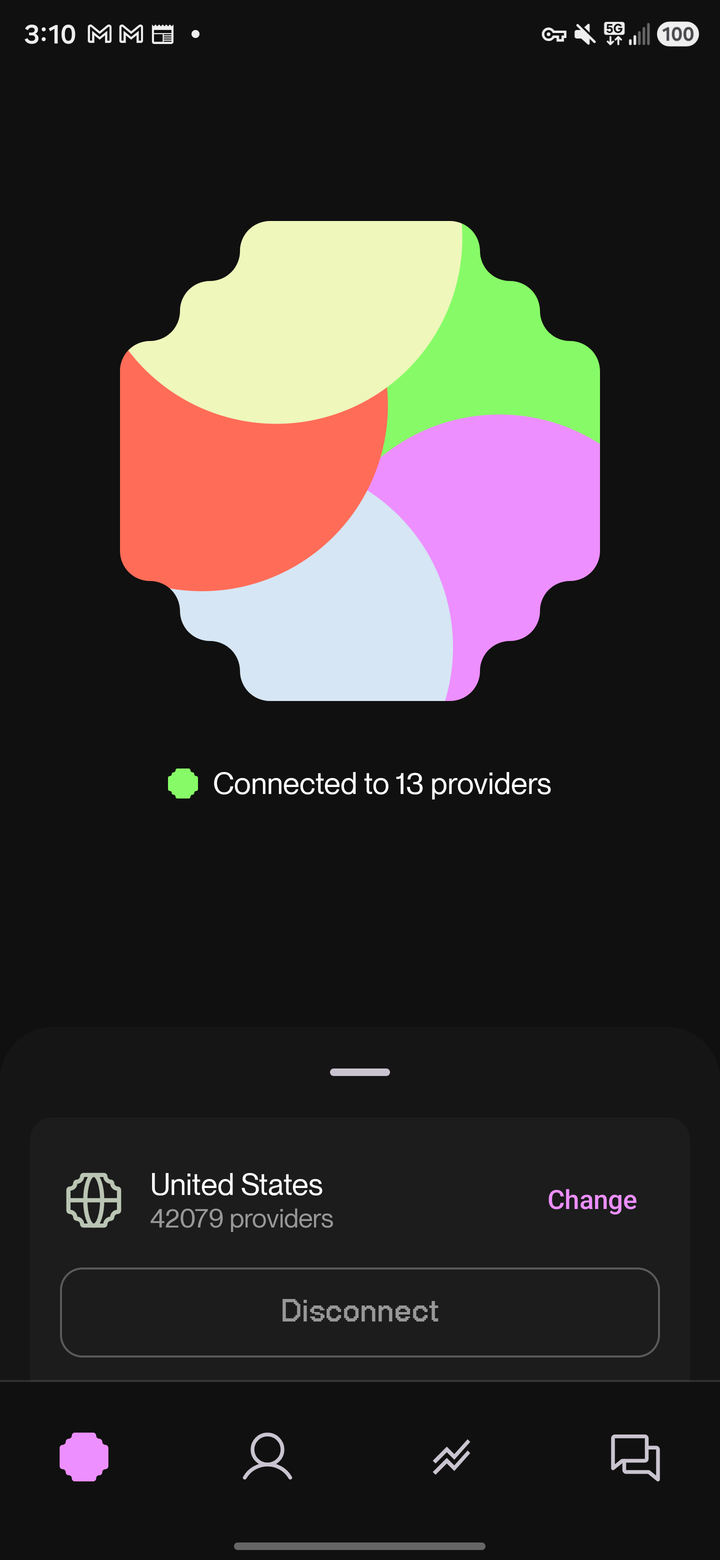
The quick-settings tile cannot show the consent dialog; only an app screen can. Tap the URnetwork tile before your first consent and it opens the app to finish the job. After that one consent, the tile connects and disconnects on its own. If your first tap of connect seems to do nothing, the dialog was dismissed. Tap connect again.
Choose a location
By default you connect to the Best available provider. The network keeps picking fast, reliable providers for you. That is the right choice for most sessions.
To choose where your traffic exits:
- On the Connect tab, tap the current location to open the provider picker.
- Scroll for countries, or type to search. Cities and regions appear only in search results, so type a city's name to find it.
- Tap a location, then connect.
Each place shows a live provider count. Providers are member devices, not datacenters, so counts rise and fall with the time of day. The overview explains the path your traffic takes. The tour explains the connection settings and their trade-offs.
Confirm it works
Look for the key icon in your status bar. It is Android's own VPN indicator. While it shows, the tunnel is up. If the key ever disappears, the tunnel is down.
If something fails
The Support tab in the app reaches the team at feedback.ur.io. It can attach app logs when something misbehaves. The FAQ answers common questions.
What next
- Take the tour. Every screen and setting: per-app split tunneling, domain and IP rules, custom DNS, the kill switch (off by default), and Android's always-on/lockdown mode.
- Share your connection. Provide mode is off by default, and Wi-Fi-only once on. Sharing over mobile data takes a second, separate toggle. Providers participate in the UR protocol; ur.xyz documents how rewards work.
- Try another platform: iOS, macOS, Windows, Linux, and the browser.